# Reports
Details the use of Reports modules
# Cemetery Memorials No GPS
#### **Purpose**
This report creates a listing of all records in the selected cemetery identifying the *tombstone photos* information with photos with no GPS coordinates. This is useful to determine which memorial records for a cemetery need updated *tombstone photos*.
#### **Report Form**
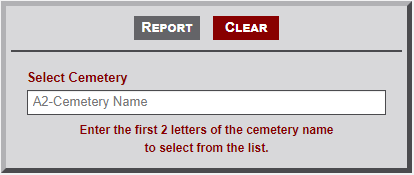
As indicated on the form image below, enter the first two letters of a *Cemetery Name* in the input box. This will then display a list of cemetery names that begin with the entered letters. Continuing to enter letters with further filter the list. Select the desired cemetery. The name will then appear in the input box. Finally, select the **Report** button to retrieve the cemetery records.
[](https://wiki.txfannin.org/uploads/images/gallery/2024-09/report-no-gps-form.png)
#### **Sample Output**
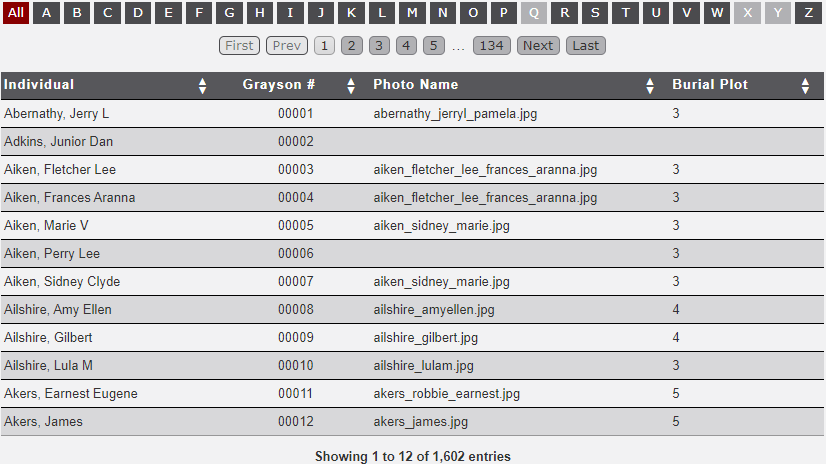
The image below illustrates a sample output of the *Cemetery Memorials No GPS* report. Only the records containing no GPS coordinates are included in the report. Note the following regarding the output.
- Records are initially sorted by *Individual*. Clicking on the column heading containing up/down triangles will sort the selected column. The initial sort will be in ascending order. Clicking the column a second time will change the sort to descending order. Clicking the heading a third time will return the column to the original order.
- A future update to the module will include buttons to export the records to the clipboard.
[](https://wiki.txfannin.org/uploads/images/gallery/2024-09/report-no-gps-output.png)
# Cemetery Memorials Plots
#### **Purpose**
This report creates a listing of all records in the selected cemetery identifying the *Burial Plot* information. This is useful to determine which memorial records for a cemetery need updated *Burial Plot* information.
#### **Report Form**
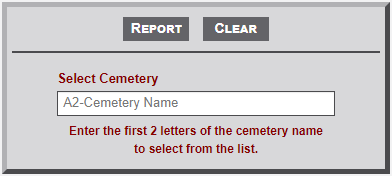
As indicated on the form image below, enter the first two letters of a Cemetery Name in the input box. This will then display a list of cemetery names that begin with the entered letters. Continuing to enter letters with further filter the list. Select the desired cemetery. The name will then appear in the input box. Finally, select the **Report** button to retrieve the cemetery list.
[](https://wiki.txfannin.org/uploads/images/gallery/2024-09/report-plots.png)
#### **Sample Output**
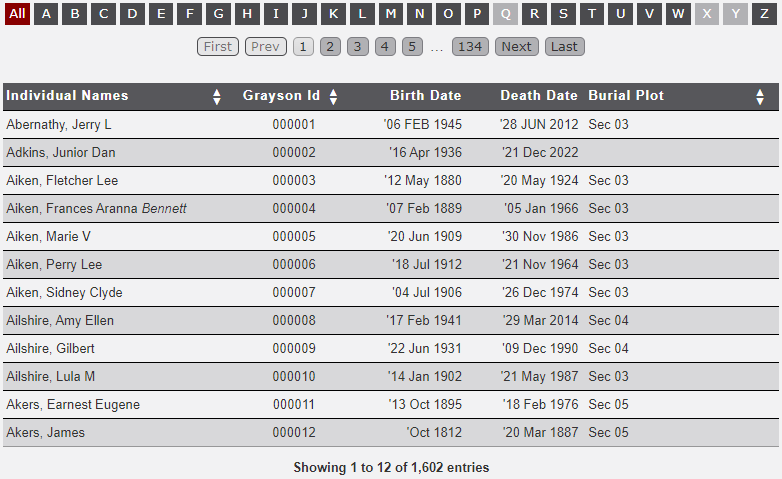
The image below illustrates a sample output of the *Cemetery Memorials Plots* report. Only the records containing Burial Plot information are included in the report. Note the following regarding the output.
- Records are initially sorted by *Individual*. Clicking on the column heading containing up/down triangles will sort the selected column. The initial sort will be in ascending order. Clicking the column heading a second time will change the sort to descending order. Clicking the column heading a third time will return the column to the original order.
- A future update will include buttons to export the records to the clipboard.
- Notice that the dates include a quote mark ( ' ) before the dates. This prevents the dates being changed by Excel when exported to a spreadsheet.
[](https://wiki.txfannin.org/uploads/images/gallery/2024-09/report-plots-output.png)
# Cemetery Military Info
#### **Purpose**
This report creates a listing of all records in the selected *cemetery* or *all cemeteries* identifying the tombstone *inscriptions* with photos with a *military campaign* and/or *branch of service*. This is useful to for providing to cemetery associations for placement of flags on graves for *Memorial* and/or *Veterans Day*.
#### **Report Form**
1. As indicated on the form image below, enter the first two letters of a *Cemetery Name* in the input box. This will then display a list of cemetery names that begin with the entered letters. Continuing to enter letters with further filter the list. Select the desired cemetery. The name will then appear in the input box. As indicated in the **Select Cemetery** placeholder text, the field can be left vacant to run the report for *All* cemeteries.
2. Select one option from either the **Desired Campaign** or **Desired Service** dropdown items.
3. Finally, select the **Report** button to retrieve the cemetery records.
[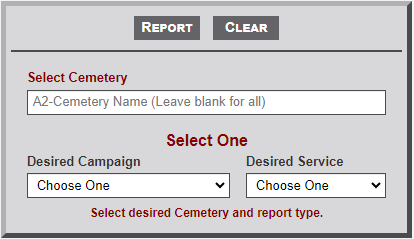](https://wiki.txfannin.org/uploads/images/gallery/2024-09/report-mil-info-form.png)
#### **Sample Output**
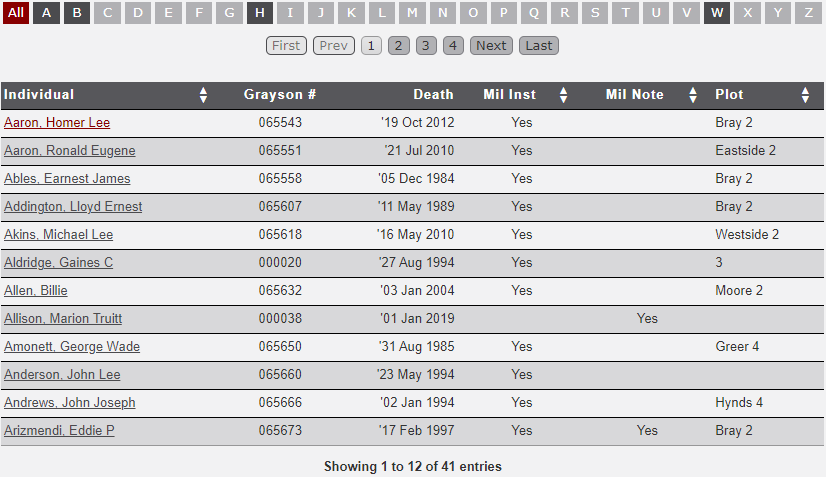
The image below illustrates a sample output of the *Cemetery Military Info* report. Only the records containing Military Campaign and/or Branch of Service information are included in the report. Note the following regarding the output.
- Records are initially sorted by *Individual*. Clicking on the column heading containing up/down triangles will sort the selected column. The initial sort will be in ascending order. Clicking the column heading a second time will change the sort to descending order. Clicking the column heading a third time will return the column to the original order.
- A future update will include buttons to export the records to the clipboard.
- Notice that the dates include a quote mark ( ' ) before the dates. This prevents the dates being changed by Excel when exported to a spreadsheet.
[](https://wiki.txfannin.org/uploads/images/gallery/2024-09/report-mil-info-output.png)
# Cemetery Statistics
#### **Purpose**
This report creates a listing of cemetery statistics for all *cemeteries* with a *memorial count > 0*. This provides a snapshot of those cemetery that might need updating of memorial records.
#### **Report Form**
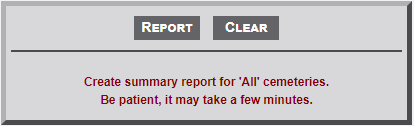
No input required, just select the **Report** button to begin the report generation. As noted, this may take a few minutes so be patient.
[](https://wiki.txfannin.org/uploads/images/gallery/2024-09/report-cem-stats-form.png)
#### **Sample Output**
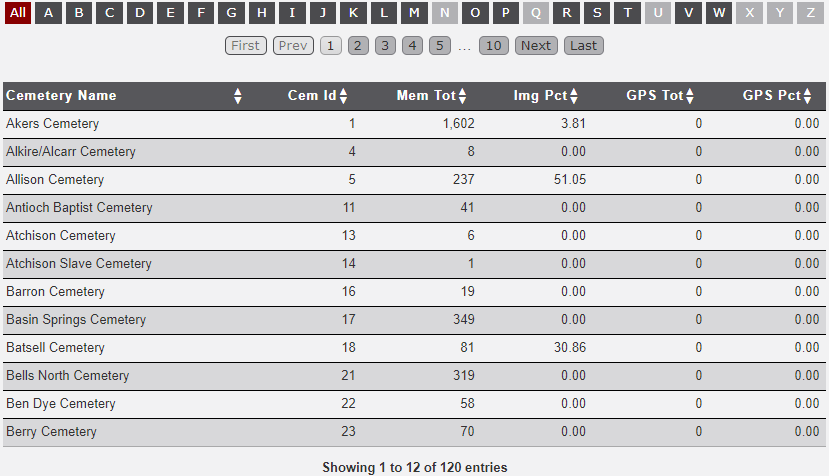
The image below illustrates a sample output of the *Cemetery Statistics* report. Only the records containing *memorial* records are included in the report. Note the following regarding the output.
- Records are initially sorted by *Cemetery Name*. Clicking on the column heading containing up/down triangles will sort the selected column. The initial sort will be in ascending order. Clicking the column heading a second time will change the sort to descending order. Clicking the column heading a third time will return the column to the original order.
- A future update will include buttons to export the records to the clipboard.
[](https://wiki.txfannin.org/uploads/images/gallery/2024-09/report-cem-stats-output.png)
# Cemetery Veterans
#### **Purpose**
This report creates a listing of *memorial* records for all *cemeteries* which have information in the *military image*, *note*, or *inscription* fields. This provides a snapshot of the cemetery *memorial* records that has veteran related information.
#### **Report Form**
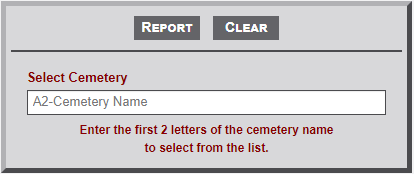
As indicated on the form image below, enter the first two letters of a *Cemetery Name* in the input box. This will then display a list of cemetery names that begin with the entered letters. Continuing to enter letters with further filter the list. Select the desired cemetery. The name will then appear in the input box. Finally, select the **Report** button to retrieve the cemetery list.
[](https://wiki.txfannin.org/uploads/images/gallery/2024-09/report-veterans-form.png)
#### **Sample Output**
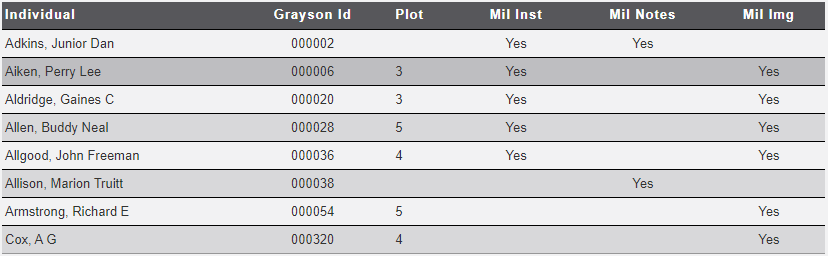
The image below illustrates a sample output of the *Veterans* report. Only the records containing information in the *military image*, *note*, or *inscription* fields are included in the report. Note the following regarding the output.
- Records are initially sorted by *Cemetery Name*. User sorting is not available on this report. A report with more records will cause the table to include the alphabet bar and pagination buttons.
[](https://wiki.txfannin.org/uploads/images/gallery/2024-09/report-veterans-output.png)
# Memorials Attribute
#### **Purpose**
This report creates a listing of *memorial* records that contains search string in the selected attribute field.
#### **Report Form**
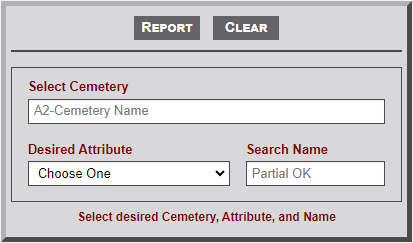
1. As indicated on the form image below, enter the first two letters of a **Select Cemetery** input box. This will then display a list of cemetery names that begin with the entered letters. Continuing to enter letters with further filter the list. Select the desired cemetery. The name will then appear in the input box.
2. Select the **Desired Attribute** from the dropdown list.
3. Enter the string (e.g., Smith) in the **Search Name** field.
4. Select the **Report** button to create the report.
[](https://wiki.txfannin.org/uploads/images/gallery/2024-09/report-attribute-form.png)
#### **Sample Output**
The image below illustrates a sample output of the *Attributes* report. Only the records with the *search* string in the *attribute* field are included in the report. Note the following regarding the output.
- Records are initially sorted by the *Individual n*ames. User sorting is not available on this report. A report with more records will cause the table to include the alphabet bar and pagination buttons.
- Notice that the dates include a quote mark ( ' ) before the dates. This prevents the dates being changed by Excel when exported to a spreadsheet.
[](https://wiki.txfannin.org/uploads/images/gallery/2024-09/ULoreport-attribute-output.png)
# Memorials Death Year
#### **Purpose**
This report creates a listing of *memorial* records from all or single *cemetery that contains the year in *death* field. This is helpful when searching newspapers for updating obituary information.
#### **Report Form**
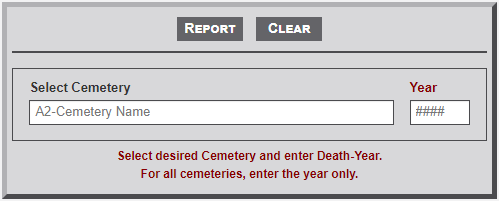
1. As indicated on the form image below, enter the first two letters of a **Select Cemetery** input box. This will then display a list of cemetery names that begin with the entered letters. Continuing to enter letters with further filter the list. Select the desired cemetery. The name will then appear in the input box. Leave the field empty to search all *cemeteries*.
2. Enter the desired *death year* in the **Year** field. This is a required field.
3. Select the **Report** button to create the report.
[](https://wiki.txfannin.org/uploads/images/gallery/2024-09/report-death-year-form.png)
#### **Sample Output**
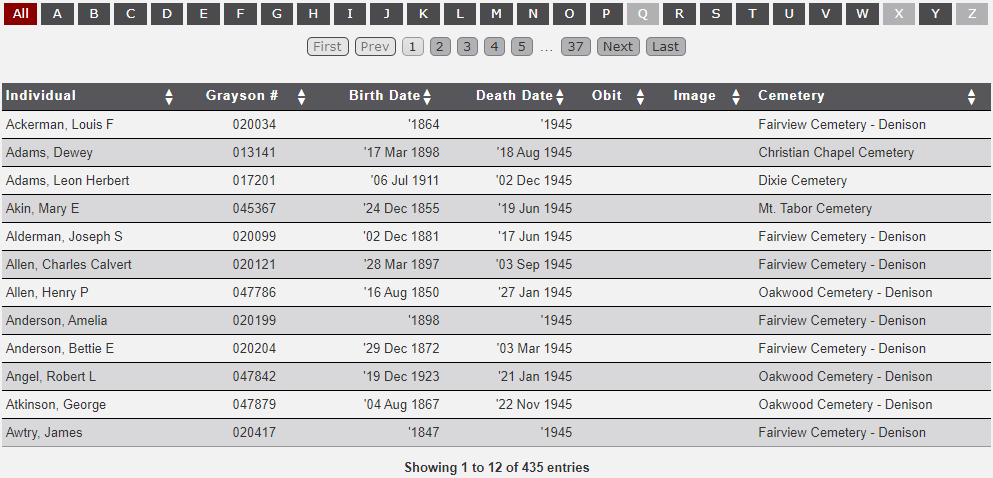
The image below illustrates a sample output of the *Death Year* report. Only records with the *death year* in the *death* field are included in the report. Note the following regarding the output.
- Records are initially sorted by *Cemetery Name*. Clicking on the column heading containing up/down triangles will sort the selected column. The initial sort will be in ascending order. Clicking the column heading a second time will change the sort to descending order. Clicking the column heading a third time will return the column to the original order.
- Notice that the dates include a quote mark ( ' ) before the dates. This prevents the dates being changed by Excel when exported to a spreadsheet.
[](https://wiki.txfannin.org/uploads/images/gallery/2024-09/report-death-year-output.png)
# Memorials Search
#### **Purpose**
This report creates a listing of *memorial* records that contains search string in any text field of a *Memorial* record.
#### **Report Form**
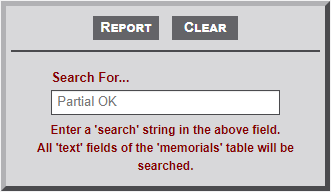
1. Enter the desired string (e.g., Smith) in the **Search For...** field.
2. Select the **Report** button to create the report.
[](https://wiki.txfannin.org/uploads/images/gallery/2024-09/report-search-form.png)
#### **Sample Output**
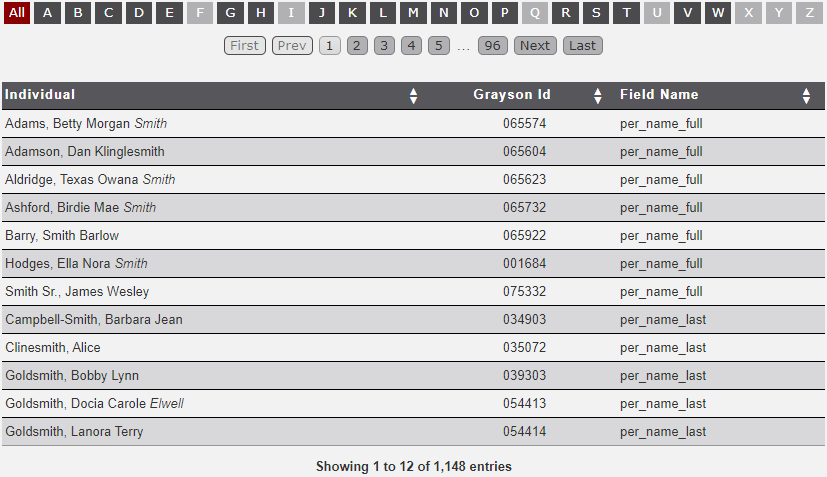
The image below illustrates a sample output of the *Search* report. Only the records with the *search* string in any text field of a memorial record are included in the report. Note the following regarding the output.
- Records are initially sorted by *Individual n*ame. Clicking on the column heading containing up/down triangles will sort the selected column. The initial sort will be in ascending order. Clicking the column heading a second time will change the sort to descending order. Clicking the column heading a third time will return the column to the original order.
- The *Field Name* column contains the database table field containing the search value. The sample output illustrates a search for *Smith*.
- Note that some records include Smith as the Maiden Name (i.e., Adams, Betty Morgan *Smith*), some as the First Name (i.e., Barry, *Smith* Barlow) and some as part of the Last Name (i.e., Cline*smith*, Alice).
[](https://wiki.txfannin.org/uploads/images/gallery/2024-09/report-search-output.png)