# Utilities
Details the use of the Utilities Modules
# Any Page Text Module
#### **Purpose**
The **Any Page Text** utility is used to enter unique text items for identified site pages. On any webpage there are various elements that are used to display 'static' text. Elements such as the page heading and text boxes used to describe something about the company or staff. Most often these are 'hard coded' into the HTML for the page. Given the nature of this GenWeb site it is better to have a mechanism where the *County Coordinator* can make changes to any page text without needing to change the basic HTML code. Thus, this module.
#### **Overview**
The general structure of a website page consist of a *page heading*, *page introduction text*, *table introduction text*, *table*, and *image*.
##### **Usage**
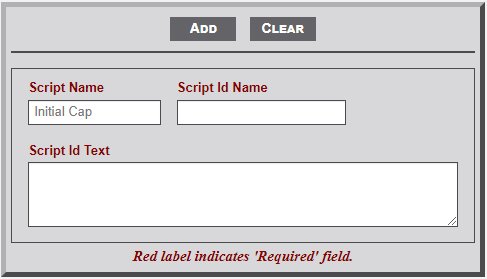
As noted in the image below there are three input items: *Script Name*, *Script Id Name*, and *Script Id Text*. All are required fields.
[](https://wiki.txfannin.org/uploads/images/gallery/2024-09/anypagetext.png)
The **Any Page Text** module includes three elements as indicated below. All are **required** fields.
1. **Script Name** - This field identifies the script/module that is to be the recipient of the text. For example if the text is intended for the main (index) page the entry in this field would be 'index'. Likewise for the cemetery page it would be 'cemetery'. Whatever name appears in the URL for the page would be entered in the field. BUT... note that the placeholder indicates *Initial Cap*. Thus, 'cemetery' would be 'Cemetery'.
2. **Script Id Name** - Now comes the tricky part. Within an HTML page there exists elements that are identified by using an identifier tag (e.g., **<div id="thisElement">**). Given that the element is intended to be unique only one instance of the identifier can be used on a page. To determine the specific identifier for a page do the following steps.
- Open the page in the browser.
- Right click on an area of the page.
- Select View Page Source from the dropdown menu.
- Locate the desired element.
3. **Script Id Text** - HTML text to appear on the indicated page.
# Search Database - New
#### **Purpose**
The **Any Page Text u**tility is used to enter unique text items for identified site pages. On any webpage there are various elements that are used to display 'static' text. Elements such as the page heading and text boxes used to describe something about the company or staff. Most often these are 'hard coded' into the HTML for the page. Given the nature of this GenWeb site it is better to have a mechanism where the *County Coordinator* can make changes to any page text without needing to change the basic HTML code. Thus, this module.
#### **Utility Form**
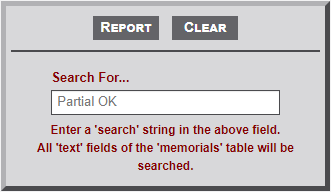
The general structure of a website page consist of a *page heading*, *page introduction text*, *table introduction text*, *table*, and *image*.
[](https://wiki.txfannin.org/uploads/images/gallery/2024-09/utility-search-form.png)
#### **Sample Output**
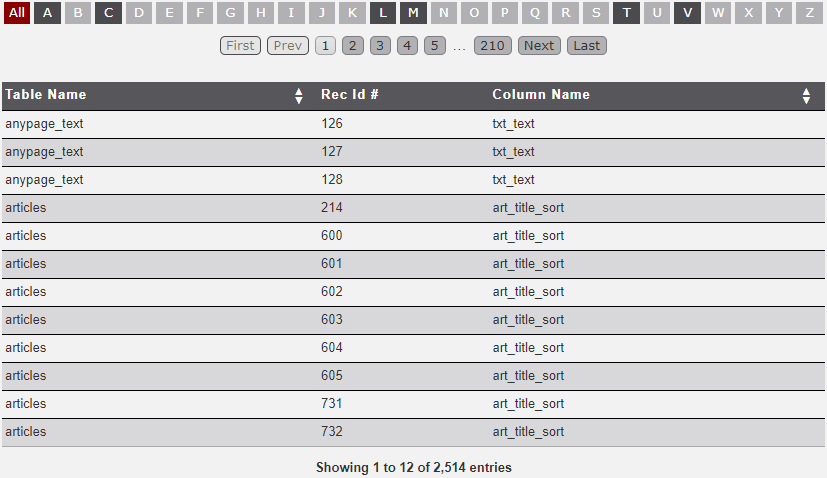
Three columns of information are provided as seen in the sample output below. The output is the result of a search for Smith. The Search module searches all table in the database, with the exception of the *transaction* table. See the next two Utility page for a further discussion of the *transaction* table.
1. **Table Name** - This column identifies the database **table** where a search parameter was located.
2. **Rec Id #** - This column identifies the **record** number within the table where a search parameter was located.
3. **Column Name** - This column identifies the **column** name where a search parameter was located.
[](https://wiki.txfannin.org/uploads/images/gallery/2024-09/utility-search-output.png)
# Transaction Log Display - New
#### **Purpose**
This module displays records from the Database *transaction* table. Occasionally, it might be necessary to determine when a *memorials* record was last updated and/or by which user. The *transaction* table is a log of all memorial transactions. Included in the record is the actual mySQL test string submitted. Thus, if needed, a record that might have been accidentally deleted can be recovered.
#### **Utility Form**
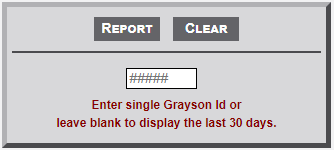
To create a report use one of the two options:
1. Enter a single **Grayson Id** to display all of the *transaction* table for the indicated Id.
2. Leave the field blank to display all *transaction* table records for the past 30 days..
[](https://wiki.txfannin.org/uploads/images/gallery/2024-09/utility-log-display-form.png)
#### **Sample Output**
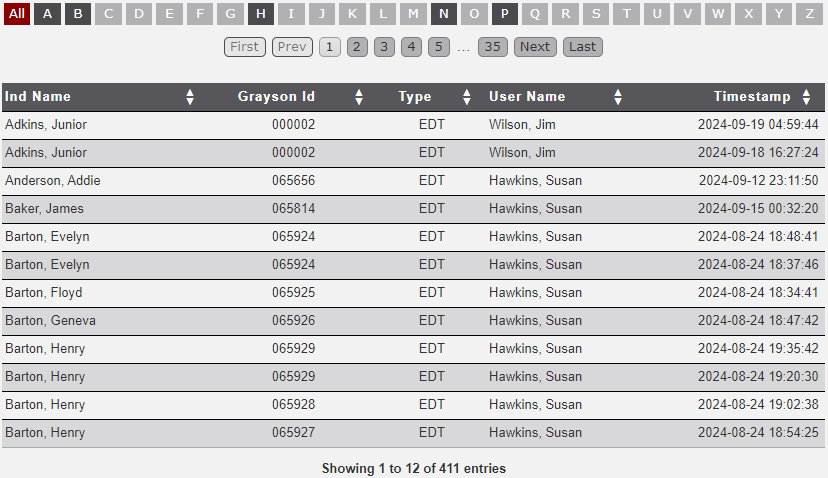
The sample output below was produced by leaving the **input field** blank.
**[](https://wiki.txfannin.org/uploads/images/gallery/2024-09/utility-log-display-output.png)**
**Information displayed includes…**
1. **Ind Name** - Name of the individual associated with the *memorials* record.
2. **Grayson Id** - Id number of the record.
3. **Type** - The type of update preformed (Add, Edt, Del) on the particular record.
4. **User Name** - Name of the *user* who made the transaction.
5. **Timestamp** - The computer generated *date-time* that the transaction was made.
# Transaction Log Report - New
#### **Purpose**
This module displays a summary of the *transactions* made by a user for each *month* of the year indicated along with a *total* for the year. It is simply a report to display the work being performed by the users.
#### **Utility Form**
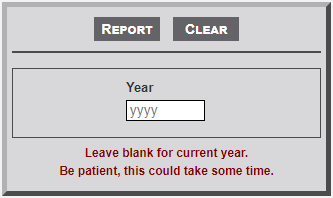
To create a report use one of the two options:
1. Enter a single **Grayson Id** to display all of the *transaction* table for the indicated Id.
2. Leave the field blank to display all *transaction* table records for the past 30 days.
[](https://wiki.txfannin.org/uploads/images/gallery/2024-09/utility-log-report-form.png)
#### **Sample Output**
The sample output below was produced by leaving the **Year** field blank. The report displays the **User-Name** with the number of updates the **user** made by **Month** with the **Total**.
[](https://wiki.txfannin.org/uploads/images/gallery/2024-09/utility-log-report-output.png)
# Users - New
#### **Purpose**
The **Users** utility module is used to enter information for users who are allowed access to the Admin area.
#### **Overview**
The provided information will allow access to the website Admin are with the Access Level identified.
#### **Usage**
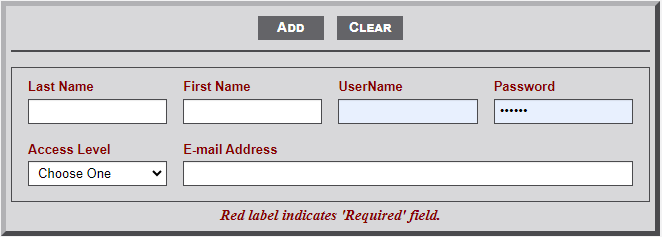
As noted in the image below there are multiple input areas. All are **required **fields.
[](https://wiki.txfannin.org/uploads/images/gallery/2024-09/users-form.png)
1. **Last Name** - Last name of the new *User*.
2. **First Name** - First name of the new *User*. Middle Initial optional.
3. **UserName** - Username for the new *User*. Ask new user for preference.
4. **Password** - Password for new User. *User* can change once they sign-in with this password.
5. **Access Level** - Two levels are available; **Admin** and **User**.
- **Admin** - This level provides access to all **Admin** modules.
- **Users** - This level provides access to a *subset* of the **Admin** modules. Users do not have access to the modules identified on the *dashboard* and modules included in the *Utilities* menu.
6. **E-mail Address** - E-mail Address of the new *User*.
# What's New
#### **Purpose**
On the website home/index page there is an area set aside for announcements, coming soon notices, and what's new information. The What's New Utility module is used to facilitate this action.
#### **Overview**
The information displayed in the What's New area on the home/index page is displayed in three different categories: Announcements, Coming Soon, and What's New. An information heading is displayed within each category for the specific subject. Multiple items in any one heading can be set. A start and stop date for each item must be set (i.e., I hate to see an announcement for an event on March 20 displayed on March 21).
#### **Usage**
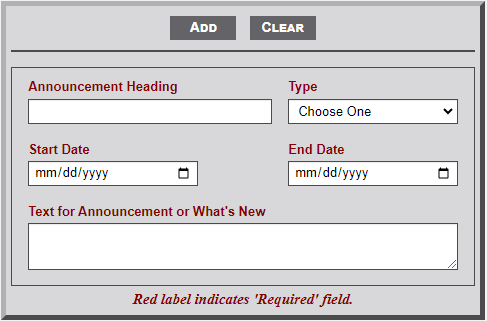
As shown in the image below, the **What's New** module includes five input fields for data to include in the '*whatsnew*' table. All are required fields
[](https://wiki.txfannin.org/uploads/images/gallery/2024-09/whats-new.png)
The **What's New** module includes 5 fields as follows:
1. **Announcement Heading** - Enter the text heading for the category.
2. **Type** - Select the type of What's New category: *Announcement*, *Coming Soon*, or *What's New*
3. **Start Date** - Use the calendar dropdown to select the start date of the category item.
4. **End Date** - Use the calendar dropdown to select the end date of the category item.
5. **Text for Announcement** - Enter the text for the category item.
####